
 By
By When it comes to choosing Axis security cameras for your surveillance, a wealth of free tools becomes available to you on the Axis Communications website. One such tool is the Axis site designer (now the Axis site designer 2), which makes planning an entire CCTV system as easy as playing a game from the comfort of your computer. While we do suggest creating an Axis account to save each system plan you make, you don’t even have to purchase Axis hardware to use the tool, so it makes the entire process as easy as possible. Here’s a walkthrough of how you can utilize this online tool to your advantage!
Axis site designer walkthrough
Before we start, first-time users of the Axis site designer will see this agreement and then an explanatory video before using the tool. The agreement outlines what Axis views as fair use of its online tool while also detailing how it will operate with and without an Axis account. Again, we suggest making an Axis account for the Axis site designer so you don’t have to go through the hassle of saving every system design on your computer and running the risk of losing it when forgetting to save.

As can be seen in the below image, you can still use the online tool, but the site itself will encourage you to log in. You don’t necessarily need to do so, but keep in mind that closing the window or losing your internet connection may result in a loss of any work done on the Axis site designer. Going forward, we will be using the site with our logged-in account.

When signed in, you can either click the Add project button or the request that replaces the second bar in the below section. After you take this step, you will see the following menu.

From this menu, you can adjust each aspect of a proposed Axis security camera system to your preferences. Along with each of the prompts on the left, you can also click the bottom prompts (devices, estimated storage, estimated bandwidth) to enter into its respective section. Below you will see where each leads.


Respectively, each menu is absolutely important to the process of developing an Axis security camera system with the Axis site designer. The screenshot below also shows a useful tool Axis offers that helps you keep track of your system’s development whether you are an inhouse team developing a CCTV system or a contractor building it out for a client.

Going back to one of the three screens above, you can start building your Axis camera system by adding cameras by the same brand through the Axis site designer. Here you can add any modern Axis camera you’re interested in through the following screen.

Adding an Axis camera here in the Axis site designer is made excessively easy with the two prompts presented.

Here you can see a menu with several options to choose from that allow for the best possible Axis camera for your scenario. Through the options in the above menu, you can define each security camera based off your specific needs. While it can be an arduous process for those needing multiple different types of Axis cameras, it can also allow for every inch of your site to be covered. However, there would need to be some experimentation committed to catch the best product per each area. That said, there is a quicker way to find Axis cameras, but with a drawback of using less detail.

When using the Quick add a device option, you can apply a specific product developed by Axis Communications to your plan based off having the SKU number. Keep in mind Axis identifies SKUs in a different regard than most CCTV carriers like A1 Security Cameras. The difference in identification is listed below.

The information Axis references

The information everyone else references
Upon adding given security camera, you will then see it applied to the camera list you’re referencing for your system. Next you will need its placement and potential software you’re looking for. Below you’ll see what each looks like and where to choose each feature.


The left symbol above the arrow allows for the selection of placement and additional products needed. The symbol to the right applies to software that can be include or licensed per camera of the same design. Keep in mind that performance may rise or fall depending on the inclusion of different programs chosen in the application menu. Here is what the menu looks like when both are adjusted.

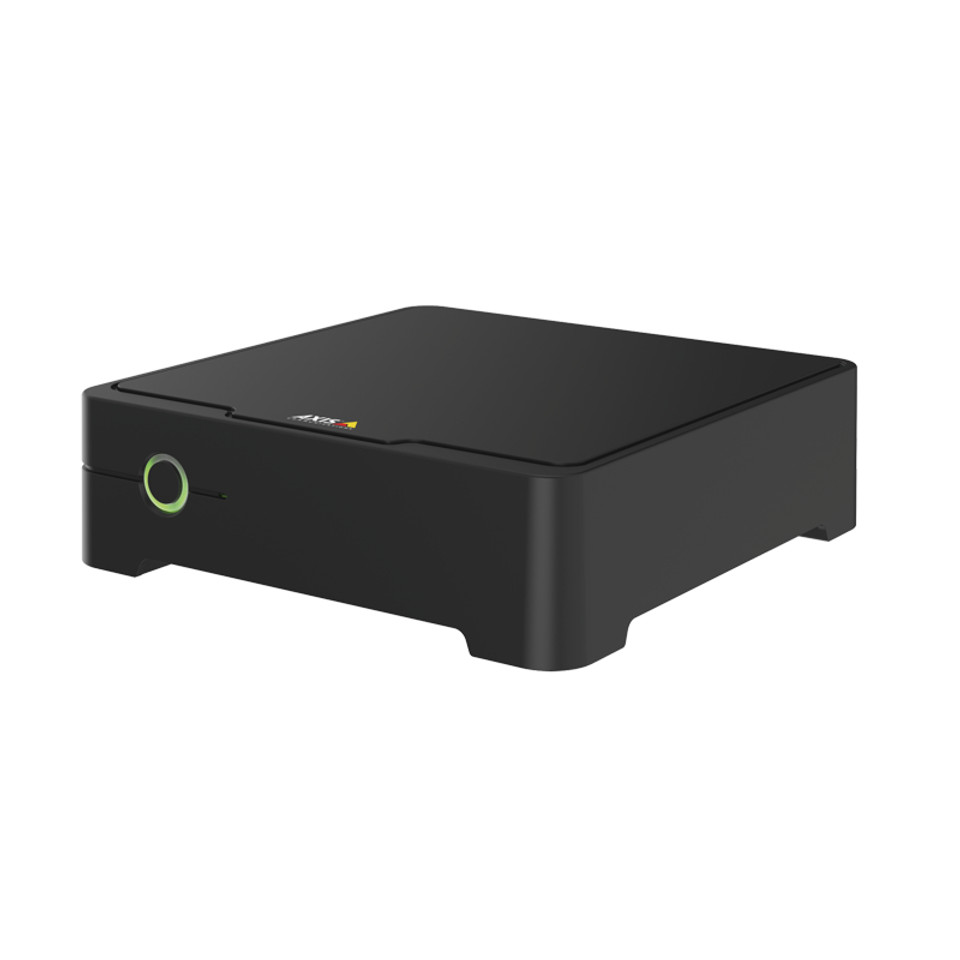
Whereas you’ll pick more than one Axis camera, we’re going to settle for one here and move onto how you’ll decide on the Axis video recording solution you’re looking for. Keep in mind this will include by Axis, the product in that regard being the Axis camera station. Below we’ve chosen a fairly basic solution and the results it would provide in a potential Axis camera system.

The results would then equal to the menu above the selection shown and the image recorded below.

The products you would be looking for when choosing this option can be found in the below products.